

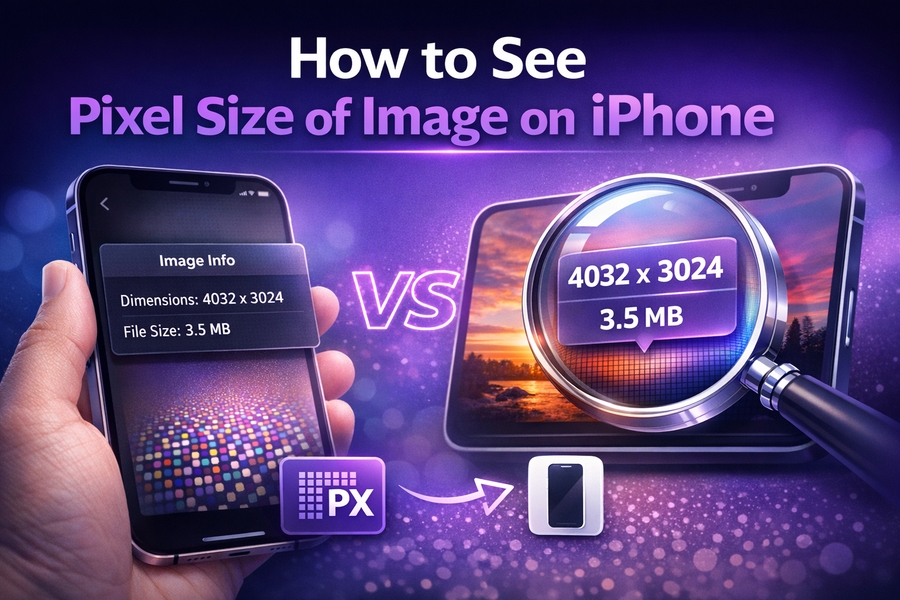
When you take a photo on your iPhone, you might want to know the pixel size of the image for various purposes, such as ensuring it’s suitable for printing or determining the quality of the photo. The pixel size of an image refers to its resolution, expressed in width and height in pixels. Understanding this can help you optimise your photos for different uses.
This article will guide you on how to check the pixel size of an image on your iPhone and other helpful tips related to image size and resolution.
How to Check Image Pixel Size on iPhone
To check the pixel size of an image on your iPhone, start by opening the Photos app. Once you have the image you want to check, swipe up on the photo or tap the “info” button, which will reveal the image’s dimensions in pixels. These dimensions show the width and height in pixels, which is the pixel size of the image.
Knowing the pixel size is important because it determines how the image will appear when printed or displayed on screens. For example, an image with a higher pixel size will typically be clearer and more detailed when enlarged or printed. Understanding this allows you to manage your photos better for specific needs, whether for social media posts or large-format prints.
In addition to checking the image’s pixel size, you may also want to know its file size. This information is displayed alongside the pixel dimensions and tells you how much storage the photo occupies. Knowing both the pixel size and file size will help you determine if an image is too large for certain uses or if it needs resizing.
Understanding Image Resolution and Its Importance
Image resolution refers to the amount of detail an image holds and is often measured in pixels per inch (PPI) or dots per inch (DPI). Resolution is crucial because it affects how sharp and clear the image looks when printed or displayed. On your iPhone, you can also find out the resolution of your image through its EXIF metadata, which contains the PPI or DPI information.
For example, an image with 300 PPI is typically considered high quality for printing, as it will retain sharpness even at larger sizes. On the other hand, an image with a lower PPI, like 72 PPI, may appear pixelated when printed at larger sizes, making it suitable only for web or screen use.
To further understand how the resolution impacts the image quality, you can refer to various tools and guides available online. These can help you better comprehend pixel dimensions and how they affect print quality, which is especially important for photographers or graphic designers.
Steps to Resize Images for Optimal Pixel Size
If you find that an image’s pixel size isn’t suitable for your needs, you can resize it directly on your iPhone. To do this, you can use the built-in Shortcuts app or third-party apps like Visual Watermark for resizing. Resizing allows you to change the width and height of the image in pixels, making it more suitable for different applications, such as email attachments or social media posts.
Keep in mind that resizing an image can affect its quality. Reducing the size too much may lead to a loss in image clarity, while increasing the pixel size could lead to a larger file size without improving quality. For the best results, maintain an image’s original aspect ratio while adjusting its pixel size to fit your needs.
For those who need detailed information about resizing images for printing purposes, consider reading helpful guides like the one on what is a good pixel size for printing.
How to Check Image Size on iPhone Without Third-Party Apps
While using third-party apps can offer more flexibility, you can also check your image’s size on an iPhone without installing anything. In addition to the Photos app, you can use the Files app to check your photo’s size. First, save the image to your Files app, then press and hold the file to see the information, including the file size in MB and its pixel dimensions.
This method is simple and doesn’t require extra software, making it a convenient option when you need quick information. However, if you want to do more advanced image manipulation, apps that specialize in image resizing and metadata viewing may be more effective.
If you are handling images for professional use, especially when preparing files for printing or web design, checking the pixel size and resolution becomes essential. A photo that meets the right requirements will provide better results in various media and print formats.
Using iPhone Shortcuts to Automate Image Size Checking
The Shortcuts app on iPhone can be used to automate the process of checking an image’s size and resolution. You can create a custom shortcut that extracts the pixel dimensions and resolution of an image whenever you open or save a photo. This is a great option if you work with many images regularly and need quick access to this information.
For those who want more advanced automation, combining the Shortcuts app with third-party apps for photo resizing and compression can be a powerful workflow. This allows you to not only check but also resize and optimize your images without manually opening each one. You can even create custom automation that resizes all photos taken by your iPhone based on specific requirements.
Pixel Size vs. Image Quality: What You Need to Know
The pixel size of an image is closely related to its quality. A larger pixel size typically means more detail, while smaller pixel sizes can lead to blurry or pixelated images when enlarged. However, image quality also depends on factors like compression and resolution. An image with a large pixel size but low resolution may still appear blurry, while a smaller pixel size with high resolution could still look sharp.
For photographers and designers, understanding how to balance pixel size and resolution is crucial. If you’re resizing images for print, make sure the resolution is high enough for the desired print size. A general rule of thumb for print is to aim for a resolution of 300 PPI. For digital use, like social media posts, 72 PPI may suffice.
If you’re uncertain about what size or resolution is best for your project, guides like what is a good pixel size for printing can provide further clarity.
Tools to Help You Check and Resize Image Size on iPhone
If you want to dive deeper into checking and resizing image sizes on your iPhone, you can use online tools like pixels to inches converter. These tools allow you to convert the pixel dimensions of your image to inches, which can be helpful when preparing files for printing. Tools like pixels to inches converter help simplify the process of converting between different units of measurement.
You can also find specific guides that detail how to resize an image for different printing formats, such as what pixel size is 8.5 x 11 inches, or check the pixel dimensions of standard paper sizes. These tools and guides are essential for ensuring that your images meet the right requirements for printing, web design, and more.
For those who are new to checking and resizing images, using an online pixels to inches converter can help you understand how pixel sizes correspond to physical dimensions. This can be especially useful for designers, photographers, or anyone who needs to work with images in a professional capacity.
Understanding Image Resolution and Its Effect on Print
When preparing images for print, it’s essential to understand the role of image resolution. High-resolution images have more pixels and therefore offer better quality, especially when printed. To ensure your print looks sharp and clear, aim for at least 300 DPI (dots per inch). This is the standard for most high-quality prints, from business cards to posters.
If you’re unsure about the resolution needed for different sizes, tools like what pixel size is 16×9 can help clarify what works best for various formats. This is important for anyone working with print media, where image clarity is a top priority.
Conclusion: Best Practices for Image Size and Resolution
Knowing how to check the pixel size of an image on your iPhone is a valuable skill for anyone working with photos. Whether you’re resizing images for social media, email, or print, understanding pixel dimensions and resolution is key to ensuring high-quality results. By following the steps outlined in this article and utilizing the right tools, you can confidently manage your images for any purpose.
If you’re working with images for professional use, consider using guides and tools to further optimize your photos. Whether it’s for resizing, checking the resolution, or converting pixels to inches, resources like pixels to inches converter can make the process much easier and more accurate. With these tips, you’ll have the tools to get the best out of your images every time.